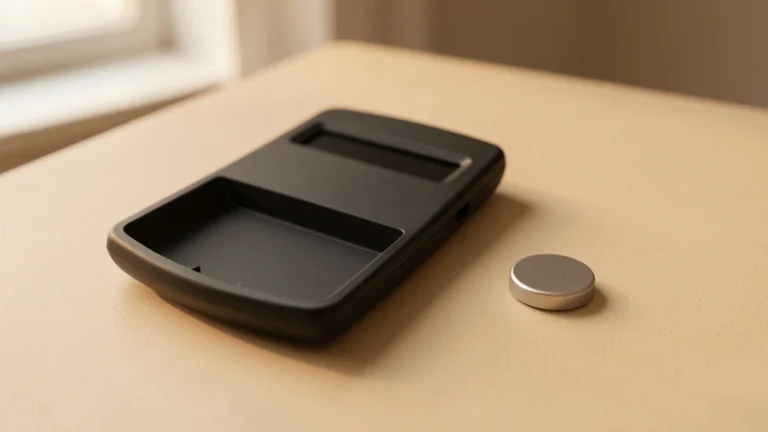
A calculator that suddenly shows nothing, or shows the wrong thing, is rarely broken beyond repair. Most dead-screen and stuck-key problems trace back to one of four simple causes: weak power, a bad viewing angle, a stuck key, or a frozen error state. Working through a short checklist finds the cause in a few minutes, often without opening the case or buying a replacement.
A calculator that will not display anything is almost always a power problem, a display-angle problem, a stuck key, or a frozen error message, in that order of likelihood. Check the battery or solar panel first, since a dim or blank screen is most often low power rather than a real fault. Next, tilt the screen and check the viewing angle, because many basic LCDs go nearly invisible outside a narrow range. Then inspect the keypad for debris or a physically stuck key, and try a hard reset if the unit still will not respond. Clear any lingering error message before assuming the calculator itself has failed. While sorting out the fix, the Advanced Scientific Calculator works as a free, fully functional stand-in for homework and practice.
Why Is a Calculator Showing Nothing at All?
A blank or dim display is the most common calculator complaint, and low power is the most common cause. Battery-only calculators simply stop showing anything once the battery drops below a working voltage, without any warning first.
Solar-assisted calculators add a second wrinkle: the solar panel needs enough light to supplement or replace the battery. A calculator that works fine near a window can appear dead in a dim room, a backpack, or a drawer, purely because the panel is not receiving enough light.
Swapping in a fresh battery is the fastest test. Most basic and scientific calculators use a coin-cell or AAA battery that a user can replace at home with a small screwdriver, and many models list the exact battery type on the back panel or in the manual.
Solar-assisted models deserve one extra step before assuming the battery is the problem: hold the calculator under a bright lamp or near a window for thirty seconds and try turning it on again. A screen that flickers to life under bright light points to the solar cell, not the battery, as the weak link.
A calculator that stays fully blank even with a fresh battery and good light is more likely facing a display or internal fault, which the later sections in this checklist cover.
Why Does the Display Look Blank From Some Angles but Fine From Others?
Many basic and scientific calculators use a simple liquid crystal display, or LCD, that only shows readable contrast within a narrow viewing angle. Tilting the calculator even a small amount can make the digits fade to nearly invisible, even though the unit is powered on correctly.
This angle sensitivity is a normal property of low-cost LCD panels, not a defect. A calculator lying flat on a desk, viewed from directly above, often shows the clearest possible contrast, while the same screen viewed from a low angle across a classroom desk can look completely blank.
Some models include a physical contrast wheel or a software contrast setting, usually reached through a menu or a secondary function key, that lets a user darken faint digits directly instead of relying only on the viewing angle.
A quick way to rule out an angle problem: pick the calculator straight up, hold it level with the eyes, and look straight down at the screen. Digits that suddenly appear clearly confirm the screen itself is fine and the earlier blank look was only a viewing-angle effect.
Extreme heat or direct sunlight can also distort LCD contrast temporarily on some models. Moving the calculator to a cooler, shaded spot for a few minutes and checking again separates a heat-related fade from a real hardware fault.
How Do You Check for a Stuck or Unresponsive Key?
A stuck key usually announces itself in one of two ways: a single digit or function repeats on its own, or one specific key does nothing no matter how many times it gets pressed. Both point to the keypad rather than the power supply or the screen.
Crumbs, dust, and spilled liquid residue are the most frequent causes of a stuck key on a keypad that sits under buttons rather than behind a sealed membrane. A gentle press-and-release test on every key, working row by row, usually finds the exact key that feels different from its neighbors.
- Turn the calculator off and wipe the keypad surface with a dry, lint-free cloth to remove loose debris.
- Press each key individually and watch the display for a matching character, working left to right, row by row.
- Note any key that feels physically sticky, sits lower than the surrounding keys, or fails to register a digit on the screen.
- For a key that sticks physically, gently work it up and down a few times, since this can dislodge trapped debris without opening the case.
- Confirm the fix by clearing the display and retyping a short calculation, such as 12 plus 8, using only the previously stuck key.
A key that still fails to register after cleaning is more likely a mechanical or contact fault inside the case. At that point, a manufacturer repair service, a warranty claim, or a replacement calculator is usually more practical than further home repair.
How Do You Hard Reset a Calculator?
A hard reset clears a frozen or unresponsive calculator back to its default startup state, similar to restarting a computer. Most models include a small recessed reset button on the back, reachable with a paperclip or pen tip, though some rely on a specific key combination instead.
Graphing and higher-end scientific calculators sometimes store programs, saved variables, or custom settings in memory, and a hard reset can erase that stored data along with whatever is causing the freeze. Checking the manual before resetting a calculator with saved work avoids losing something valuable by accident.
Removing the battery for about sixty seconds and then reinserting it works as a hard reset on many basic and scientific models that lack a dedicated reset button. This forces the internal memory to clear completely and restart from a blank state.
Reset procedures vary enough by brand and model that this article cannot state one universal button or combination as correct for every calculator. Checking the specific model’s manual, or the manufacturer’s support page, is the safest way to find the exact reset steps for a given device.
Why Is My Calculator Stuck Showing an Error Message?
An error message that will not clear is a common reason a calculator seems to stop working entirely, even though the power, display, and keys are all fine. The calculator is simply waiting for the error to be acknowledged before it accepts new input.
Common triggers include dividing by zero, entering a number outside the calculator’s supported range, or leaving a parenthesis unclosed in a long expression. Each of these produces a specific error message rather than a crash, and the calculator is functioning correctly by refusing to compute an invalid result.
Pressing the clear key, sometimes labeled AC for “all clear,” usually dismisses the error and returns the calculator to a normal, ready-to-type state. On some models, pressing the equals key or a dedicated exit key clears the error message instead.
Readers who want the full math reason behind a common trigger error can check the sibling article on why you cannot divide by zero, which explains why that specific input has no valid answer for a calculator to display.
An error that reappears immediately after clearing, on the exact same calculation, points to a genuine input mistake rather than a stuck calculator. Retyping the expression carefully, checking for a missing closing parenthesis or a misplaced decimal point, usually resolves it.
What Should You Do While a Physical Calculator Gets Fixed?
Homework and practice do not need to pause while a battery gets replaced or a reset gets sorted out. The Advanced Scientific Calculator runs entirely in a browser, with no battery, solar panel, or keypad to fail, and covers the same trig, log, power, root, and memory functions found on a typical physical scientific calculator.
It uses standard algebraic entry, typing an expression left to right in normal order, so the keypresses feel familiar to anyone used to a physical scientific calculator rather than a graphing model. It does not replace a graphing calculator’s plotting screen, and it is not a substitute during an exam that requires bringing a physical, approved device.
Standardized tests and many classroom exams either require or only allow a physical calculator, and most ban internet-connected devices outright, a point covered in more depth in the sibling article on online versus physical calculators for schoolwork. An online calculator is a solid bridge for homework, not a stand-in on test day.
| Symptom | Likely Cause | What to Try First |
|---|---|---|
| Screen fully blank | Weak or dead battery, insufficient light for solar cell | Replace battery, or hold under bright light |
| Screen readable only at one angle | Normal LCD viewing-angle limit | View straight-on, or adjust contrast setting |
| One key repeats or does nothing | Debris, spill residue, or a stuck key | Clean keypad, test key by key |
| Calculator frozen, no response | Software lockup | Hard reset via reset button or battery pull |
| Same error message will not clear | Invalid input, like division by zero | Press clear or AC, retype the expression |
What Order Should You Check These Fixes In?
Working through the checks from most common to least common cause saves time, since power and display issues account for the large majority of “calculator not working” complaints.
- Check the battery or solar power first, since a dim or blank display is most often just low power.
- Check the display contrast and viewing angle next, since some LCDs look blank from certain positions even when fully powered.
- Inspect the keypad for a stuck or unresponsive key, cleaning debris and testing each key individually.
- Try a hard reset if the calculator still will not respond, using the model’s reset button or a battery pull.
- Clear any lingering error message before concluding the calculator itself has actually failed.
Skipping straight to a hard reset without checking the battery first is a common wasted step, since a reset does nothing to fix a display that simply lacks enough power to show anything.
Need a working calculator right now while sorting out battery, display, or keypad problems on a physical one? Open the Advanced Scientific Calculator for free trig, log, power, root, and memory functions with no battery required.
FAQs About a Calculator Not Working
Does a Blank Calculator Screen Always Mean the Battery Is Dead?
No. A blank screen is most often low power, but a bad viewing angle on an LCD, insufficient light on a solar model, or a frozen error state can look identical from the outside. Checking the battery first is still the fastest starting point.
What Is the Difference Between a Stuck Key and a Frozen Error Message?
A stuck key is a physical or contact problem with one specific button, often from debris, and only that key misbehaves. A frozen error message affects the whole calculator equally and clears with the AC or clear key once the invalid input is acknowledged.
What Happens if a Calculator Still Will Not Turn On After a Battery Replacement?
A calculator that stays blank with a confirmed fresh battery and good lighting likely has an internal hardware fault. A hard reset is worth trying next, and a manufacturer repair or replacement is the reasonable next step after that.
What Is the Most Common Mistake People Make When Troubleshooting a Calculator?
Jumping straight to a hard reset without checking the battery or display angle first wastes time, since power and viewing-angle issues cause most complaints. Working through the checks in order, cheapest first, finds the real cause faster.
Can I Use an Online Calculator While My Physical One Is Being Fixed?
Yes, for homework and practice. The Advanced Scientific Calculator on this site offers the same core scientific functions with no battery needed, though most standardized tests and in-class exams still require a physical, approved device.
Will a Hard Reset Erase Saved Programs or Settings on a Graphing Calculator?
Often yes. Many graphing and higher-end scientific calculators store programs and custom settings in memory that a hard reset can clear along with the freeze. Checking the manual before resetting protects any saved work.
What Is a Worked Example of Checking a Suspected Stuck Key?
Clear the display, then type 12 plus 8 using only the key suspected of sticking. A correct 20 on the screen confirms that key now registers properly, while a repeated or missing digit confirms the key still needs cleaning or replacement.
Sources
Reference Sources Used in This Article
This article is for general math education only. Exact calculator behavior varies by brand and model, so check your device’s manual for specifics. Reviewed for accuracy by Prof. Dr. Khalil Mudassar, PhD. Last updated September 23, 2026.
Author

Shakeel Muzaffar is the Founder and Editor-in-Chief of MultiCalculators.com, bringing over 15 years of experience in digital publishing, product strategy, and online tool development. He leads the platform's editorial vision, ensuring every calculator meets strict standards for accuracy, usability, and real-world value. Shakeel personally oversees content quality, formula verification workflows, and the platform's commitment to publishing tools that are genuinely useful for students, professionals, and everyday users worldwide.