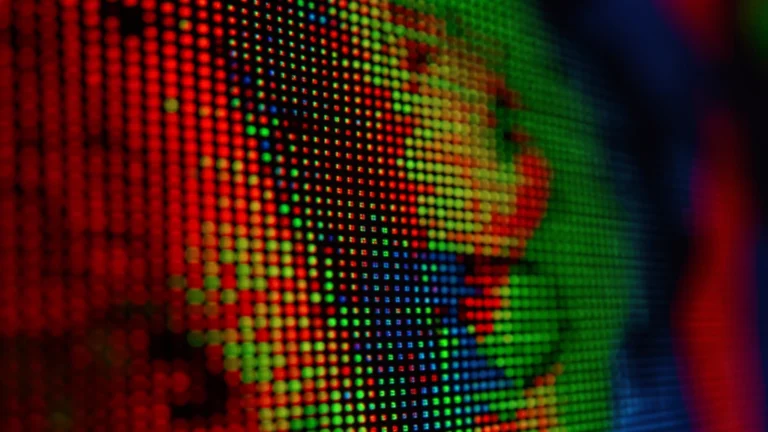
Zoom far enough into any digital image and it dissolves into a grid of colored squares. Those squares are pixels, and how many of them an image holds is its resolution. Resolution decides how much detail an image can show, but more pixels are not always better, and no software can truly add detail that was never captured. Here is what resolution really means and how much you actually need.
- Resolution is the number of pixels in an image, given as width by height.
- More pixels can hold more detail, useful for large prints and cropping.
- Beyond what a screen or print can show, extra pixels add nothing you can see.
- Upscaling guesses new pixels; it cannot recover detail that was never there.
- Match resolution to the job: web, screen, or print each need different amounts.
What Resolution Really Is
Every digital image is a grid of pixels, each a single dot of color. Resolution counts that grid, usually as width by height, like 1920 by 1080. Multiply the two and you get the total pixel count, often written in megapixels, or millions of pixels.
More pixels mean the grid is finer, so it can record smaller details. This is why resolution sets the ceiling on how much information an image can contain, and how far you can enlarge or crop it before detail runs out.
Resolution Is Not the Same as Quality
It is tempting to treat a bigger number as a better image, but resolution only measures quantity, not quality. A high-resolution photo that is blurry, noisy, or badly lit is still a poor photo.
Sharpness depends on the lens, focus, lighting, and the sensor, not just the pixel count. A carefully shot 12 megapixel image can easily beat a careless 48 megapixel one. Resolution sets potential; the rest decides whether that potential is used.
Resolution and File Size
More pixels also mean more data to store, so resolution and file size are linked. Before compression, a larger pixel grid always produces a bigger file, because every extra pixel needs its own color recorded.
Compression complicates the picture. Formats like JPEG shrink files by discarding information the eye barely notices. So two images at the same resolution can have very different file sizes, depending on how heavily they are compressed. Resolution sets the raw amount of detail; compression decides how much survives in the saved file.
Why Upscaling Cannot Add Real Detail
When you enlarge a small image, software has to invent the extra pixels. It does this by guessing colors between the pixels you already have, a process called interpolation. The result is bigger, but no sharper.
The detail simply was not captured, so it cannot be recovered by stretching. Modern tools that use artificial intelligence can guess more convincingly, yet they are still inventing plausible detail, not restoring the original. Starting with enough resolution always beats enlarging later.
How Much Resolution Do You Need?
The right resolution depends on where the image will be seen. There is no single best number; the goal is enough for the job without wasting storage.
| Use | Rough resolution |
|---|---|
| Web images and social | 1 to 3 MP (about 1080p) |
| Full-screen wallpaper | Match the screen, often 2 to 8 MP |
| Standard photo prints | 3 to 8 MP |
| Large prints and cropping | 12 MP and up |
To turn any pixel dimensions into megapixels and see the aspect ratio, the Image Resolution Calculator does it instantly.
The Image Resolution Calculator turns width and height into megapixels, total pixels, and aspect ratio.
FAQs About Image Resolution
What Is Image Resolution?
Image resolution is the number of pixels in an image, given as width by height. More pixels can hold more detail, and the total is often summarized in megapixels, or millions of pixels.
Does Higher Resolution Mean Better Quality?
Not by itself. Resolution measures how many pixels there are, not how good they are. Sharpness also depends on the lens, focus, lighting, and sensor, so a lower resolution photo can look better.
Can I Increase an Image’s Resolution?
You can enlarge it, but software has to invent the extra pixels by guessing. That makes the image bigger, not genuinely sharper, because the missing detail was never captured.
What Resolution Do I Need for a Website?
For most web use, 1 to 3 megapixels, around 1080p, is plenty. Larger images only slow the page down, since screens cannot show more detail than their own pixel grid.
What Is Native Resolution?
Native resolution is the exact pixel grid a screen is built from. A display looks sharpest showing content at its native resolution, and it cannot show more pixels than it physically has.
Is Resolution the Same as Megapixels?
They are closely related. Resolution is the width by height, and megapixels are the total, width times height divided by one million. Megapixels are just a shorthand for the total pixel count.
Why Does My Photo Look Blurry When Enlarged?
Enlarging spreads a fixed number of pixels over more space, so edges soften and details blur. The image has no extra information to fill the larger size, so it cannot stay sharp.
Sources
References Used in This Article
This article is general technology education. Reviewed for accuracy by Prof. Dr. Khalil Mudassar, PhD. Last updated September 25, 2026.
Author

Shakeel Muzaffar is the Founder and Editor-in-Chief of MultiCalculators.com, bringing over 15 years of experience in digital publishing, product strategy, and online tool development. He leads the platform's editorial vision, ensuring every calculator meets strict standards for accuracy, usability, and real-world value. Shakeel personally oversees content quality, formula verification workflows, and the platform's commitment to publishing tools that are genuinely useful for students, professionals, and everyday users worldwide.