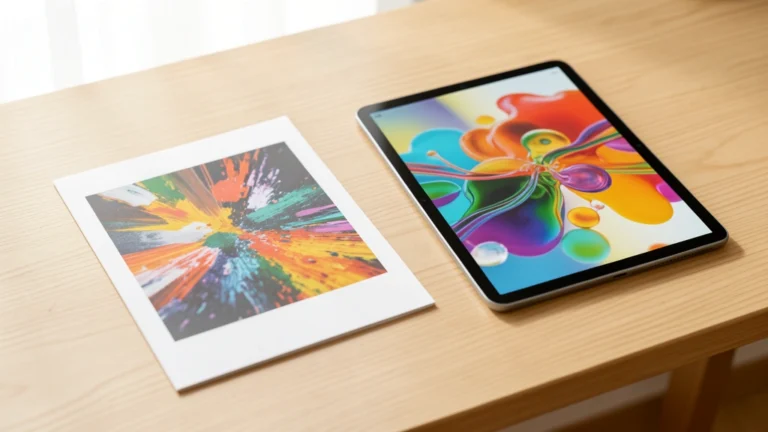
DPI and PPI sound like the same thing, and people swap the terms all the time. But they measure different things, one for printers and one for pixels, and mixing them up leads to blurry prints or wasted file size. Here is what each term really means, why the confusion is so common, and the simple resolution rules that keep your images sharp on paper and on screen.
- PPI, pixels per inch, measures how many pixels fit in an inch of an image or screen.
- DPI, dots per inch, measures how many ink dots a printer lays down per inch.
- They get confused because both describe how much detail fits in an inch.
- For photo prints, aim for about 300 PPI at the final print size.
- On screen, only the pixel dimensions matter; the DPI tag is ignored.
The Core Difference
PPI belongs to the digital world. It counts pixels, the tiny colored squares that make up an image or a screen. A higher PPI packs more pixels into each inch, which means finer detail.
DPI belongs to the printer. It counts the ink dots a printer sprays onto paper. Printers build each pixel’s color from many tiny dots, so a printer’s DPI is usually far higher than the image’s PPI. One is about the image; the other is about the machine printing it.
Why the Terms Get Confused
Both PPI and DPI answer a similar question: how much detail fits in one inch? Because that overlap is real, editing programs, camera menus, and even export dialogs often label a pixels-per-inch field as DPI.
In everyday use, when someone says a photo is 300 DPI, they almost always mean 300 PPI, the pixel density of the image. True DPI only applies once ink hits paper. The habit is harmless as long as you know which one actually controls your result.
What Matters for Printing
For print, the number that decides sharpness is the image PPI at its final size. Spread the same pixels over a bigger print and the PPI drops, so the print looks softer. The standard target for photos held at reading distance is about 300 PPI.
| Print type | Aim for |
|---|---|
| Photo prints, held close | 300 PPI |
| Posters, viewed at arm’s length | 150 to 200 PPI |
| Large banners, viewed from far | 100 PPI or less |
| Billboards | 10 to 20 PPI |
Printer DPI is a separate, hardware number, often 1200 or more. You rarely set it by hand; the printer uses many dots to render each pixel. Your job is to supply enough pixels for the print size you want.
To check the PPI for a given print size, or the print size a photo can reach at 300 PPI, the DPI Calculator works it out for you.
What Matters for Screens
On a screen, only the pixel dimensions count. A 1200 by 800 pixel image is 1200 by 800 no matter what DPI tag it carries, because browsers and apps ignore that tag when they display it.
Screen sharpness instead comes from the display’s own pixel density, its PPI. A modern phone can pack over 400 pixels per inch, which is why text looks crisp. When you design for screens, think in pixels, not inches or DPI.
How to Get It Right
The workflow is simple once you separate the two ideas. For print, decide the physical size, then make sure the image has enough pixels to hit your target PPI. For screen, work directly in pixels and ignore DPI entirely.
A quick way to link them: print size in inches equals the pixel dimension divided by the PPI. So a 3000 pixel wide photo prints 10 inches wide at 300 PPI, or 20 inches wide at a softer 150 PPI.
The DPI Calculator finds pixel density and the resolution you need for any size.
FAQs About DPI and PPI
What Is the Difference Between DPI and PPI?
PPI, pixels per inch, measures pixel density in a digital image or screen. DPI, dots per inch, measures the ink dots a printer lays on paper. PPI is about the image; DPI is about the printer.
Is 300 DPI the Same as 300 PPI?
In everyday use, people usually mean 300 PPI when they say 300 DPI for an image. Strictly, 300 PPI is the image’s pixel density, while true DPI only applies to the printed dots on paper.
What DPI Should I Use for Printing Photos?
Aim for about 300 PPI at the final print size for photos held at reading distance. Larger prints viewed from farther away can look fine at 150 to 200 PPI, since detail matters less at distance.
Does DPI Matter for Web Images?
No. Browsers ignore the DPI tag entirely and show images by their pixel dimensions. For the web, only the pixel width and height affect appearance and file size, not any DPI setting.
Why Do Printers Have Such High DPI?
Printers build each pixel’s color from many tiny ink dots through a process called halftoning. That is why a printer may be 1200 DPI or more while your image only needs about 300 PPI.
How Do I Convert Pixels to Print Size?
Divide the pixel dimension by the PPI. A 3000 pixel wide image prints 10 inches wide at 300 PPI. Lowering the PPI target makes a larger, but softer, print from the same pixels.
Can I Increase DPI to Improve a Photo?
Raising the DPI or PPI number alone does not add real detail. It only works if the image already has enough pixels. Enlarging a small image stretches existing pixels and looks soft.
Sources
References Used in This Article
This article is general technology education. Reviewed for accuracy by Prof. Dr. Khalil Mudassar, PhD. Last updated September 25, 2026.
Author

Shakeel Muzaffar is the Founder and Editor-in-Chief of MultiCalculators.com, bringing over 15 years of experience in digital publishing, product strategy, and online tool development. He leads the platform's editorial vision, ensuring every calculator meets strict standards for accuracy, usability, and real-world value. Shakeel personally oversees content quality, formula verification workflows, and the platform's commitment to publishing tools that are genuinely useful for students, professionals, and everyday users worldwide.